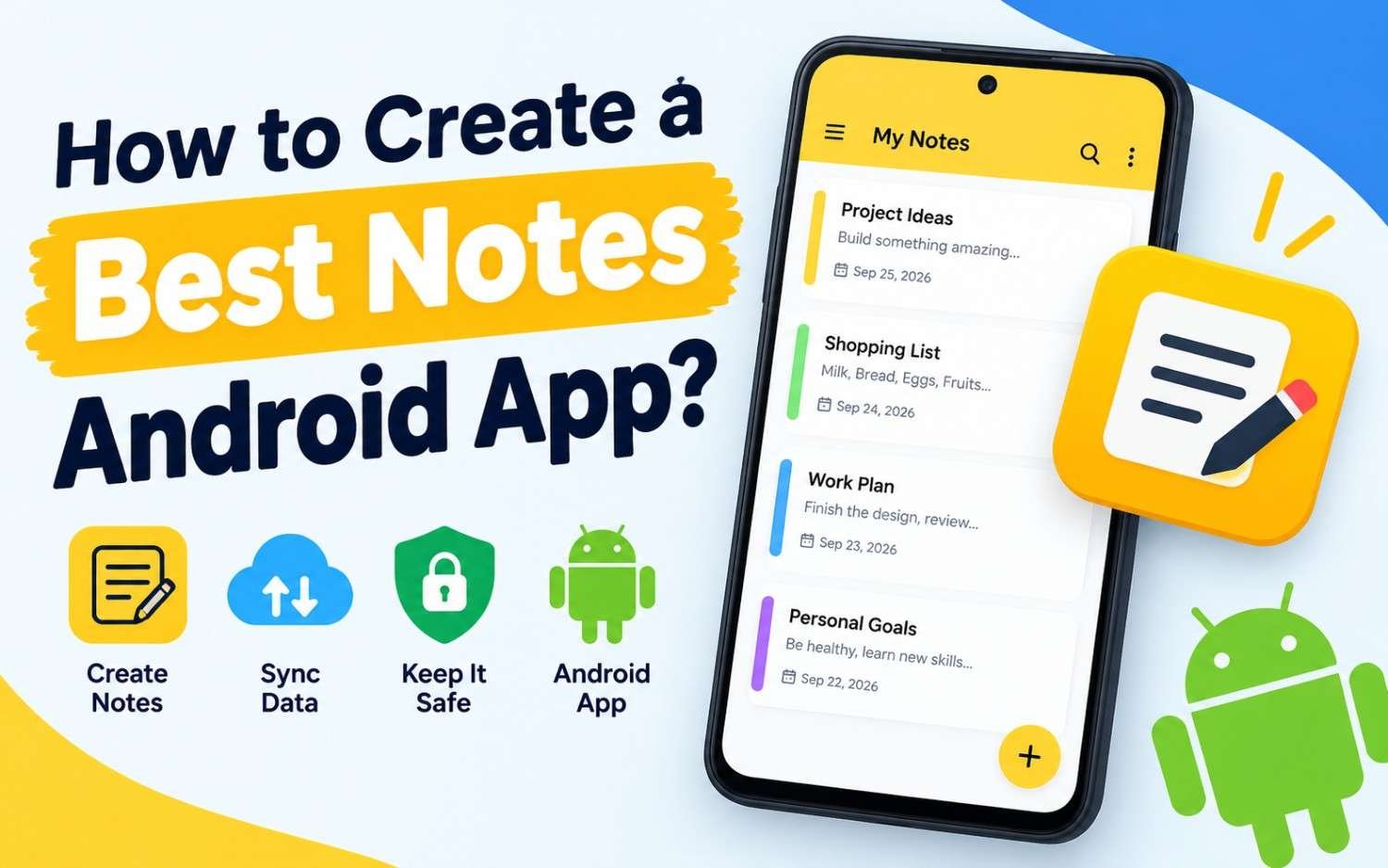
This complete guide walks you through building a modern, feature-rich Android Notes application using Kotlin, Jetpack Compose, Room Database, and Clean Architecture.
How to create a Best Notes Android app?
What Makes a “Great” Notes App in 2026?
Before writing code, define the core characteristics of an exceptional notes application:
- Instant Load & Zero Latency: Offline-first architecture using a local SQLite/Room database.
- Modern Material You UI: Responsive grid layout, dynamic color schemes, and seamless dark mode support.
- Search & Categorization: Fast full-text search (FTS), color-coded notes, tags, and pinned notes.
- Rich Media & Formatting: Support for markdown, checklists, image attachments, and voice notes.
- Data Security & Backup: Local biometric locking and cloud backup capabilities (e.g., Google Drive API integration).
Architectural Blueprint
To ensure scalability and testability, structured software layers are essential:
+-----------------------------------------------------------------------+
|                       CLEAN ARCHITECTURE LAYERS                        |
+-----------------------------------+-----------------------------------+
| LAYER                             | RESPONSIBILITY / TECH STACK       |
+-----------------------------------+-----------------------------------+
| 1. UI / Presentation Layer        | Jetpack Compose, ViewModels, MVI  |
| 2. Domain Layer                   | Use Cases, Core Business Rules    |
| 3. Data Layer                     | Room DAO, Repositories, DataStore |
+-----------------------------------+-----------------------------------+
Step 1: Define the Database Entity & DAO
Using Room, create the Note data entity and its Data Access Object (NoteDao).
Note Entity (Note.kt)
Kotlin
import androidx.room.Entity
import androidx.room.PrimaryKey

@Entity(tableName = "notes")
data class Note(
    @PrimaryKey(autoGenerate = true) val id: Int = 0,
    val title: String,
    val content: String,
    val timestamp: Long = System.currentTimeMillis(),
    val color: Int, // Hex integer for note color card
    val isPinned: Boolean = false,
    val category: String = "General"
)
Data Access Object (NoteDao.kt)
Kotlin
import androidx.room.*
import kotlinx.coroutines.flow.Flow

@Dao
interface NoteDao {

    @Query("SELECT * FROM notes ORDER BY isPinned DESC, timestamp DESC")
    fun getAllNotes(): Flow<List<Note>>

    @Query("SELECT * FROM notes WHERE title LIKE '%' || :query || '%' OR content LIKE '%' || :query || '%'")
    fun searchNotes(query: String): Flow<List<Note>>

    @Query("SELECT * FROM notes WHERE id = :id")
    suspend fun getNoteById(id: Int): Note?

    @Insert(onConflict = OnConflictStrategy.REPLACE)
    suspend fun insertNote(note: Note)

    @Delete
    suspend fun deleteNote(note: Note)
}
Step 2: Build the Repository & ViewModels
Connect your data layer to the UI state through a clean repository and ViewModel.
1.1. Create the Note Repository:Decouples UI state from raw database queries.
Kotlin
class NoteRepository(private val noteDao: NoteDao) {
    fun getAllNotes(): Flow<List<Note>> = noteDao.getAllNotes()
    fun searchNotes(query: String): Flow<List<Note>> = noteDao.searchNotes(query)
    suspend fun getNoteById(id: Int) = noteDao.getNoteById(id)
    suspend fun insertNote(note: Note) = noteDao.insertNote(note)
    suspend fun deleteNote(note: Note) = noteDao.deleteNote(note)
}
2.2. Build the NoteViewModel:Manages UI events and reactive state using StateFlow.
Kotlin
import androidx.lifecycle.ViewModel
import androidx.lifecycle.viewModelScope
import kotlinx.coroutines.flow.*
import kotlinx.coroutines.launch

class NoteViewModel(private val repository: NoteRepository) : ViewModel() {

    private val _searchQuery = MutableStateFlow("")
    val searchQuery = _searchQuery.asStateFlow()

    val notes: StateFlow<List<Note>> = _searchQuery
        .flatMapLatest { query ->
            if (query.isBlank()) repository.getAllNotes()
            else repository.searchNotes(query)
        }
        .stateIn(viewModelScope, SharingStarted.WhileSubscribed(5000), emptyList())

    fun onSearchQueryChange(newQuery: String) {
        _searchQuery.value = newQuery
    }

    fun saveNote(note: Note) {
        viewModelScope.launch {
            repository.insertNote(note)
        }
    }

    fun deleteNote(note: Note) {
        viewModelScope.launch {
            repository.deleteNote(note)
        }
    }
}
Step 3: Design the UI with Jetpack Compose
Build a grid view with staggered note cards and a floating action button (FAB) for adding new notes.
Note Card Component (NoteCard.kt)
Kotlin
import androidx.compose.foundation.background
import androidx.compose.foundation.clickable
import androidx.compose.foundation.layout.*
import androidx.compose.foundation.shape.RoundedCornerShape
import androidx.compose.material3.Card
import androidx.compose.material3.CardDefaults
import androidx.compose.material3.Text
import androidx.compose.runtime.Composable
import androidx.compose.ui.Modifier
import androidx.compose.ui.graphics.Color
import androidx.compose.ui.text.font.FontWeight
import androidx.compose.ui.text.style.TextOverflow
import androidx.compose.ui.unit.dp
import androidx.compose.ui.unit.sp

@Composable
fun NoteCard(
    note: Note,
    onClick: () -> Unit,
    modifier: Modifier = Modifier
) {
    Card(
        shape = RoundedCornerShape(16.dp),
        colors = CardDefaults.cardColors(containerColor = Color(note.color)),
        modifier = modifier
            .fillMaxWidth()
            .clickable { onClick() }
    ) {
        Column(modifier = Modifier.padding(16.dp)) {
            if (note.title.isNotBlank()) {
                Text(
                    text = note.title,
                    fontSize = 18.sp,
                    fontWeight = FontWeight.Bold,
                    maxLines = 1,
                    overflow = TextOverflow.Ellipsis
                )
                Spacer(modifier = Modifier.height(8.dp))
            }
            Text(
                text = note.content,
                fontSize = 14.sp,
                maxLines = 6,
                overflow = TextOverflow.Ellipsis
            )
        }
    }
}
Advanced Features to Add
To transition your app from basic to professional grade, integrate these capabilities:
| Feature | Recommended API / Library |
| Rich-Text Formatting | RichTextCompose or Markdown Parsing |
| Biometric Lock | AndroidX BiometricManager API |
| Image Attachments | Coil for asynchronous Compose image loading |
| Cloud Sync & Auth | Google Firebase Firestore + Google Sign-In |
| Widget Support | Jetpack Glance for building Compose-based home screen widgets |
Summary Tech Stack Checklist
- Language: Kotlin
- UI Framework: Jetpack Compose (Material Design 3)
- Local Database: Room Database
- Architecture Pattern: MVVM + Clean Architecture
- Asynchronous Execution: Kotlin Coroutines &
StateFlow - Dependency Injection: Hilt / Dagger