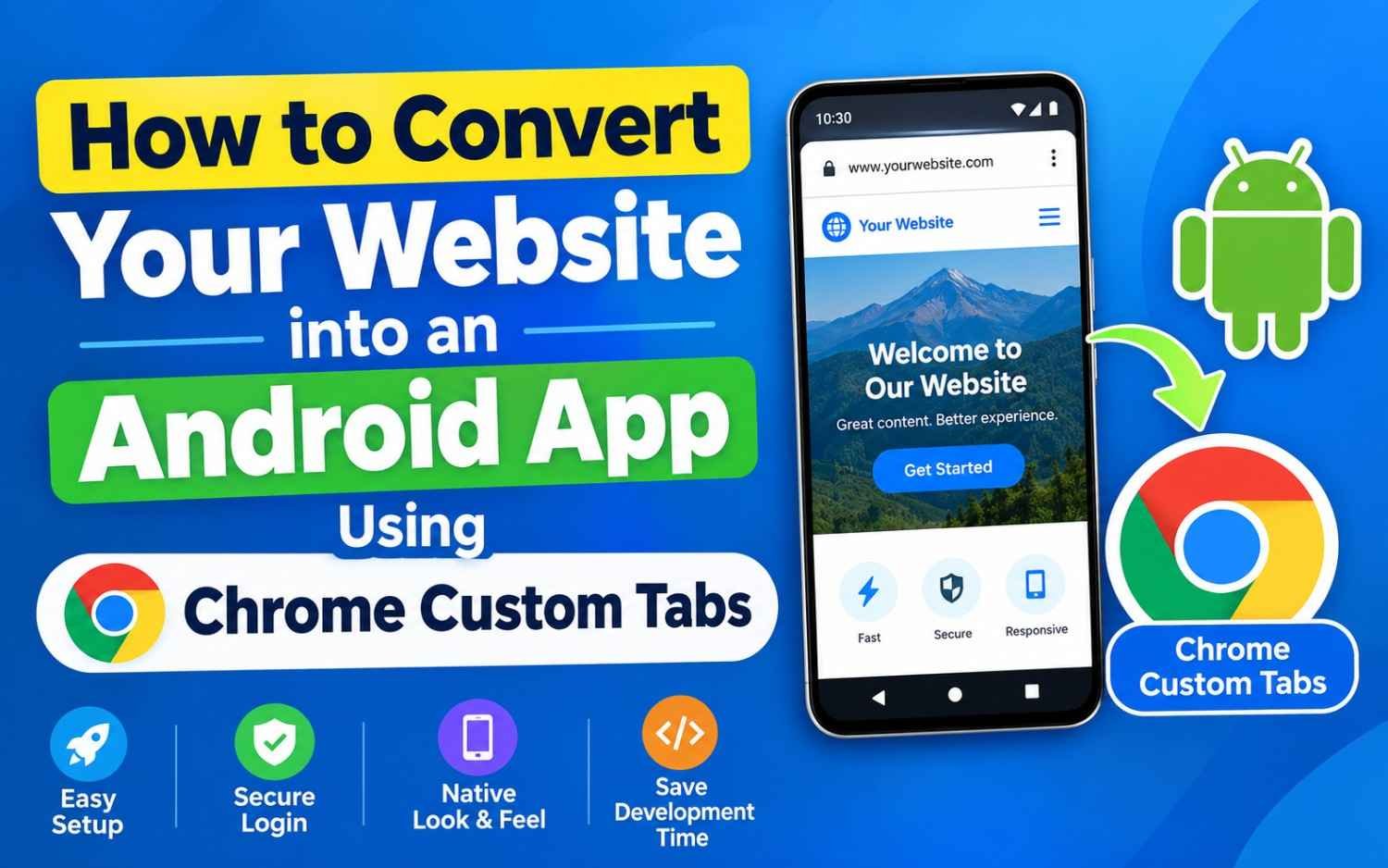
Chrome Custom Tabs (CCT) solve this by allowing your app to load web pages using the user’s installed Chrome engine. This provides faster load times, shared browser cookies (so users don’t have to log in again), autofill support, and robust security.
How to Convert Your Website into an Android App Using Chrome Custom Tabs
Why Choose Chrome Custom Tabs Over Standard WebView?
| Feature | Android WebView | Chrome Custom Tabs (CCT) |
| Performance | Basic engine; requires manual tuning | Native Chrome speed with pre-warming/pre-fetching |
| Shared Cookies / Sessions | Isolated (users must log in again) | Shared with system browser (instant sign-in) |
| Security | Vulnerable to code/script injection | Sandboxed inside Chrome with Safe Browsing |
| Maintenance | High (must update WebViews for new web APIs) | Zero (browser updates handle modern web features) |
1.Set Up Your Android Studio Project:Prerequisite.
- Open Android Studio and create a new project using the Empty Views Activity template.
- Set your primary language to Kotlin.
- Open your module-level build file (
app/build.gradle.kts) and add the AndroidX Browser dependency:
Kotlin
dependencies {
    implementation("androidx.browser:browser:1.8.0")
}
- Click Sync Now to download the required libraries.
2.Configure Internet Permissions & Intent Filters:AndroidManifest.xml.
Open app/src/main/AndroidManifest.xml and ensure your app has permission to access the internet. Add the INTERNET permission above the <application> block:
XML
<uses-permission android:name="android.permission.INTERNET" />
3.Create a Clean Launcher UI:res/layout/activity_main.xml.
Create a simple landing view with a button or auto-redirect trigger. Open activity_main.xml and update the layout:
XML
<?xml version="1.0" encoding="utf-8"?>
<LinearLayout xmlns:android="http://schemas.android.com/apk/res/android"
    android:layout_width="match_parent"
    android:layout_height="match_parent"
    android:gravity="center"
    android:orientation="vertical"
    android:padding="24dp">

    <Button
        android:id="@+id/btnOpenWebsite"
        android:layout_width="wrap_content"
        android:layout_height="wrap_content"
        android:text="Launch Website"
        android:textSize="18sp" />
</LinearLayout>
4.Implement Chrome Custom Tabs Logic:MainActivity.kt.
Open MainActivity.kt and add the custom tab builder logic. You can customize the toolbar color, enable sharing, and handle fallbacks if Chrome is missing:
Kotlin
package com.example.websiteapp

import android.content.Context
import android.content.pm.PackageManager
import android.net.Uri
import android.os.Bundle
import android.widget.Button
import androidx.appcompat.app.AppCompatActivity
import androidx.browser.customtabs.CustomTabColorSchemeParams
import androidx.browser.customtabs.CustomTabsIntent
import androidx.core.content.ContextCompat

class MainActivity : AppCompatActivity() {

    private val websiteUrl = "https://hostingguide24.com"
    private val chromePackageName = "com.android.chrome"

    override fun onCreate(savedInstanceState: Bundle?) {
        super.onCreate(savedInstanceState)
        setContentView(R.layout.activity_main)

        val btnOpenWebsite = findViewById<Button>(R.id.btnOpenWebsite)

        // Launch immediately on startup (optional) or via button click
        launchCustomTab()

        btnOpenWebsite.setOnClickListener {
            launchCustomTab()
        }
    }

    private fun launchCustomTab() {
        // Configure Custom Tab UI Colors
        val colorParams = CustomTabColorSchemeParams.Builder()
            .setToolbarColor(ContextCompat.getColor(this, R.color.black))
            .build()

        // Build Custom Tab Intent
        val customTabsIntent = CustomTabsIntent.Builder()
            .setDefaultColorSchemeParams(colorParams)
            .setShowTitle(true)
            .setShareState(CustomTabsIntent.SHARE_STATE_ON)
            .build()

        // Verify Chrome is installed for optimal performance
        if (isPackageInstalled(this, chromePackageName)) {
            customTabsIntent.intent.setPackage(chromePackageName)
            customTabsIntent.launchUrl(this, Uri.parse(websiteUrl))
        } else {
            // Fallback: Launch default system browser
            customTabsIntent.launchUrl(this, Uri.parse(websiteUrl))
        }
    }

    private fun isPackageInstalled(context: Context, packageName: String): Boolean {
        return try {
            context.packageManager.getPackageInfo(packageName, 0)
            true
        } catch (e: PackageManager.NameNotFoundException) {
            false
        }
    }
}
5.Pre-warm Chrome Engine for Faster Loading:Performance Enhancement.
To eliminate page load latency, bind to the CustomTabsService in the background. This opens a connection to the Chrome engine and speculatively loads your domain before the user clicks the button:
Kotlin
// Optional: Add speculative pre-warming for instant load speeds
val client = customTabsClient
client?.warmup(0)
val session = client?.newSession(null)
session?.mayLaunchUrl(Uri.parse("https://hostingguide24.com"), null, null)
Chrome Custom Tabs vs. Trusted Web Activities (TWA)
If you own the website domain and want a 100% full-screen app experience (without the top URL address bar), consider upgrading to a Trusted Web Activity (TWA).
- Chrome Custom Tabs: Shows a slim, customized toolbar displaying your URL and domain SSL padlock. Ideal for opening third-party links or rapid utility apps.
- Trusted Web Activity (TWA): Hides the browser chrome entirely once you verify domain ownership via a
assetlinks.jsonfile on your server. It makes your web application look like a pure native app.