Installing plugins arbitrarily can slow down your site, introduce security vulnerabilities, or create software conflicts. To keep your server lightweight while ensuring maximum performance, every new WordPress site needs a core set of plugins covering five non-negotiable areas: Security, Backups, SEO, Speed & Caching, and Forms.
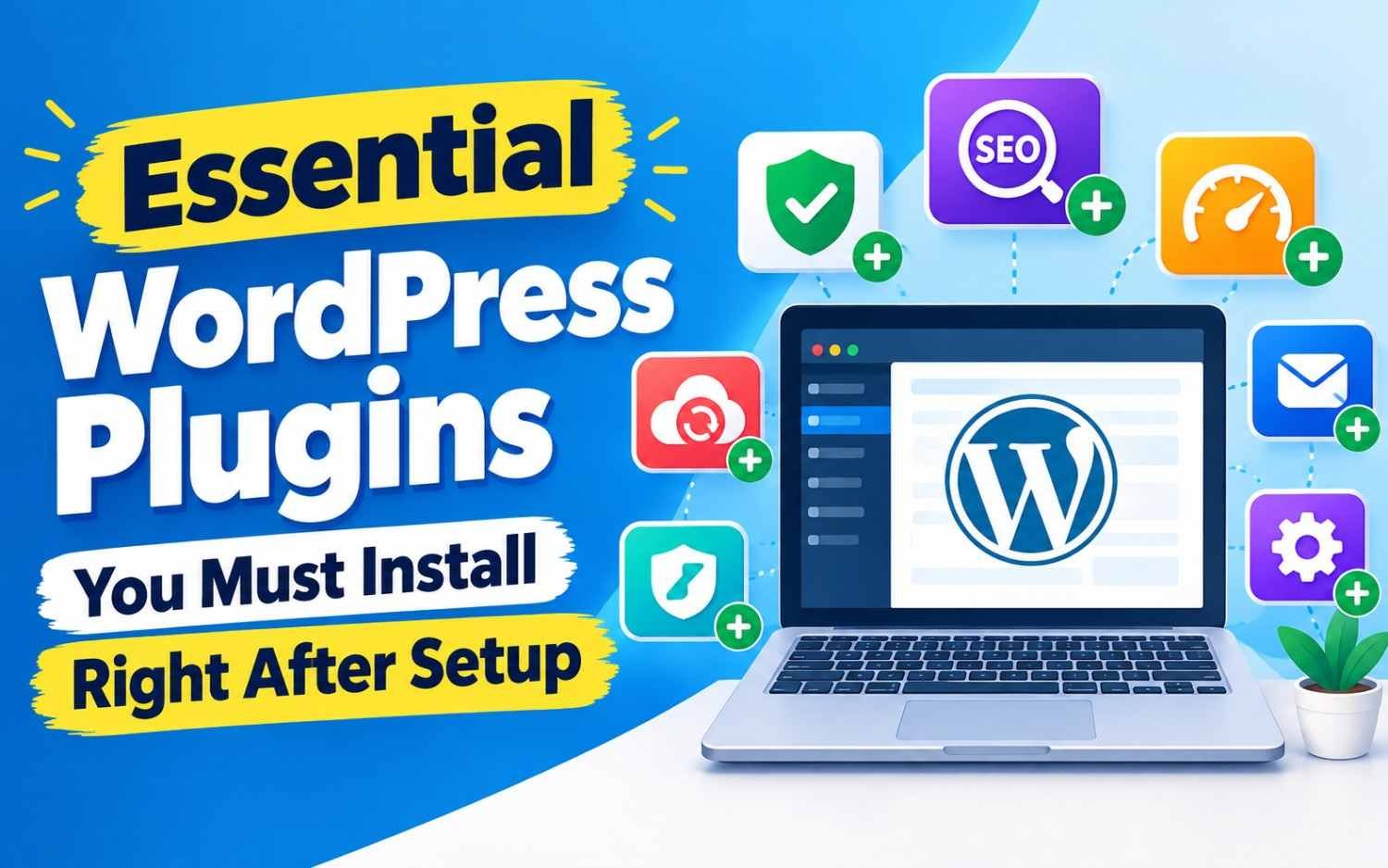
Essential WordPress Plugins You Must Install Right After Setup
Here are the essential WordPress plugins you must install right after setting up your website.
1. Security: Protect Your Site from Cyber Threats
WordPress powers over 40% of the web, making it a frequent target for automated brute-force attacks, malware scripts, and comment spam.
Top Recommendation: Wordfence Security or All In One Security (AIOS)
- What it does: Acts as an endpoint firewall and malware scanner specifically built for WordPress.
- Key Features:
- Login Protection:Enforces Two-Factor Authentication (2FA) and sets limit-login rules to prevent brute-force password guessing.
- Web Application Firewall (WAF): Blocks malicious traffic, bad bots, and SQL injection attempts before they reach your site database.
- File Integrity Scanning: Scans core files, themes, and plugins for unauthorized code modifications.
- Alternative:Solid Security (a lightweight security alternative) or Akismet Spam Protection (specifically for blocking comment spam).
2. Backups: Your Automatic “Undo” Button
Server crashes, bad updates, or accidental deletions happen. Relying solely on your host’s backup system is risky; having an independent automated backup off-site is essential.
Top Recommendation: UpdraftPlus
- What it does: Automatically backs up your entire website (database + media files, plugins, and themes) to remote cloud storage.
- Key Features:
- Automated Schedules: Set daily, weekly, or monthly automatic backups.
- Off-Site Storage Integration: Connects seamlessly to Google Drive, Dropbox, Amazon S3, or OneDrive.
- One-Click Restoration: Allows you to restore a broken site directly from your WordPress dashboard in minutes.
- Alternative:Duplicator (great for both scheduled backups and site migrations).
3. SEO: Help Google Find and Rank Your Content
Search engine optimization (SEO) helps search engines crawl, index, and understand your content.
Top Recommendation: Rank Math SEO or Yoast SEO
- What it does:Handles technical and on-page SEO tasks without requiring manual code edits.
- Key Features:
- XML Sitemap Generation: Automatically creates and updates sitemaps for Google Search Console.
- On-Page Content Analysis: Provides real-time suggestions for keyword usage, meta titles, descriptions, and readability.
- Rich Snippets & Schema Markup:Generates structured data (e.g., Article, Product, FAQ) to earn rich search results.
- Alternative:SEOPress (a clean, bloat-free SEO tool).
4. Speed & Performance: Improve Page Loading Times
Slow websites frustrate visitors and suffer lower rankings on Google. A caching plugin generates static HTML versions of your pages, significantly reducing server load and load times.
Top Recommendation: LiteSpeed Cache (for LiteSpeed Servers) or WP Rocket (Premium)
- What it does:Optimizes page asset delivery, database queries, and static file caching.
- Key Features:
- Page Caching & Preloading: Serves pre-rendered pages to visitors instantly.
- CSS/JS Minification: Compresses and delays non-critical scripts to improve Core Web Vitals scores.
- Image Lazy Loading: Delays image loading until the user scrolls down to them.
- Free Alternative for Non-LiteSpeed Servers:WP-Optimize or WP Super Cache.
5. Contact Forms: Capture Inquiries and Leads
WordPress does not include a built-in contact form builder out of the box. You need a dedicated form plugin to let visitors contact you safely without publicly exposing your email address to spam bots.
Top Recommendation: WPForms or Fluent Forms
- What it does:Offers a visual drag-and-drop builder to create contact forms, surveys, and newsletter signup boxes.
- Key Features:
- Drag-and-Drop Interface: Easily customize form fields without writing HTML/CSS.
- Spam Protection:Integrates reCAPTCHA, Turnstile, or honeypot fields to block spam entries.
- Email Notifications: Instantly sends form submissions to your inbox.
- Alternative:Bit Form.
6. Analytics & Insights: Monitor Traffic
To grow your site, you need to understand where your visitors are coming from and what pages they read most.
Top Recommendation: Site Kit by Google
- What it does:Google’s official plugin that connects your site directly to Google Analytics (GA4), Google Search Console, and PageSpeed Insights.
- Key Features:
- Unified Dashboard:View impressions, search keywords, and traffic sources inside your WordPress admin panel.
- No-Code Setup:Connects Google services securely without modifying theme header files.
Summary Toolkit Matrix
| Category | Recommended Plugin | Free vs Paid | Primary Purpose |
| Security | Wordfence / AIOS | Free core (Paid Pro) | Firewall, brute-force blocking & malware scanning |
| Backups | UpdraftPlus | Free core (Paid Pro) | Scheduled automated backups to cloud storage |
| SEO | Rank Math / Yoast | Free core (Paid Pro) | On-page SEO, sitemaps, and Schema markup |
| Speed | LiteSpeed Cache / WP Rocket | Free (LSCache) / Paid (WP Rocket) | Page caching, file minification, and speed optimization |
| Forms | WPForms / Fluent Forms | Free core (Paid Pro) | Drag-and-drop contact forms & lead capture |
| Analytics | Site Kit by Google | 100% Free | Dashboard view for Search Console and GA4 |
Golden Rule for WordPress Plugins
Keep your plugin count as lean as possible—aim for under 12 to 15 quality plugins. Delete inactive plugins completely rather than just deactivating them, and always test updates on a staging site or after running a fresh UpdraftPlus backup.